
Groomers
Groomers are the people who work for your company: groomers in the field and office staff.
Before a booking is confirmed, Groomeer checks the groomer's:
To view this page the user must have permission to
Groomers List
Click Groomers in the left menu.
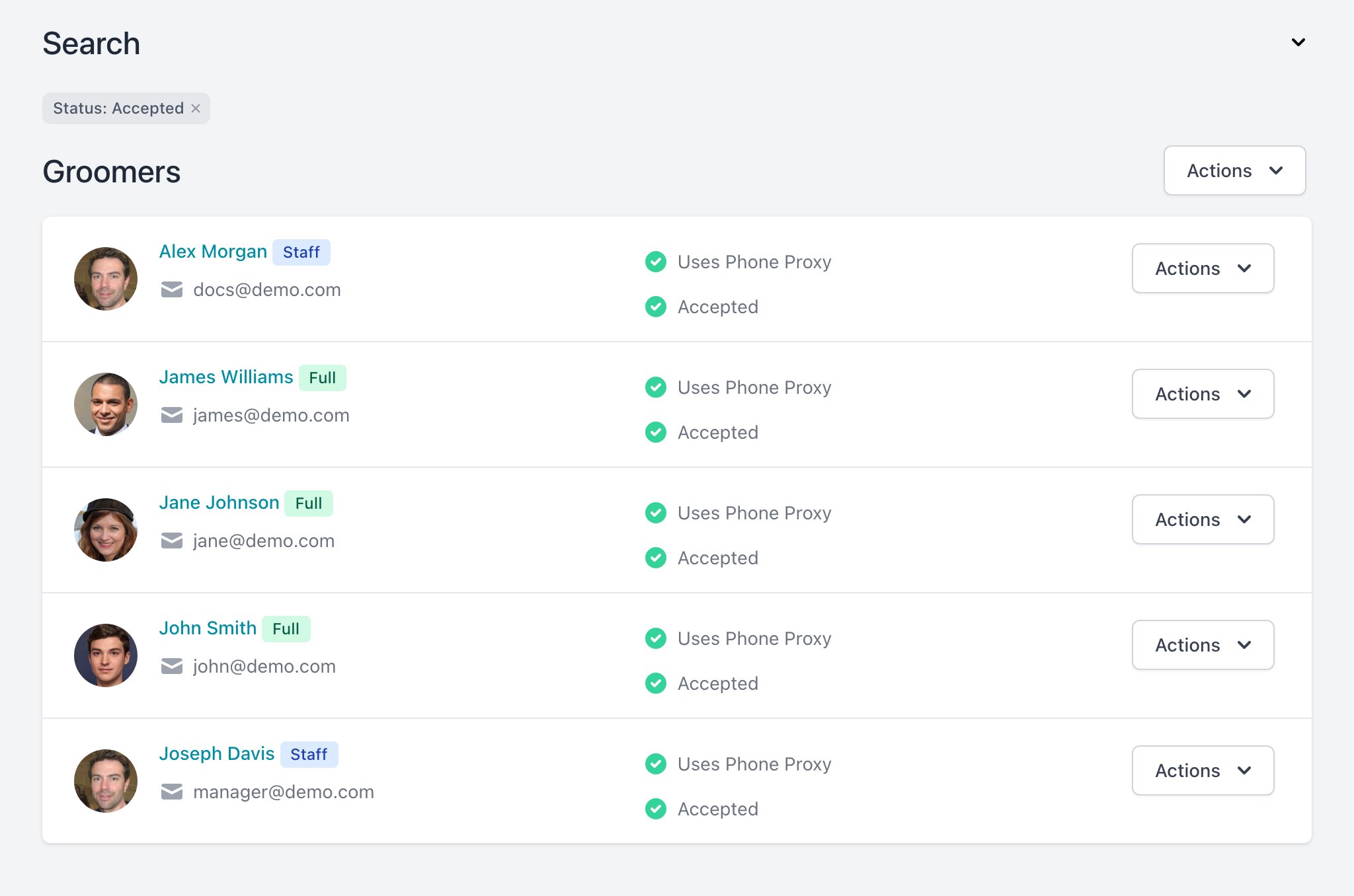
- By default the list shows Accepted groomers. Use Search to filter by email, status or type.
- A No Service badge means the groomer can't receive bookings yet.
- A red ring on the photo means the groomer is blocked.
Actions Menu
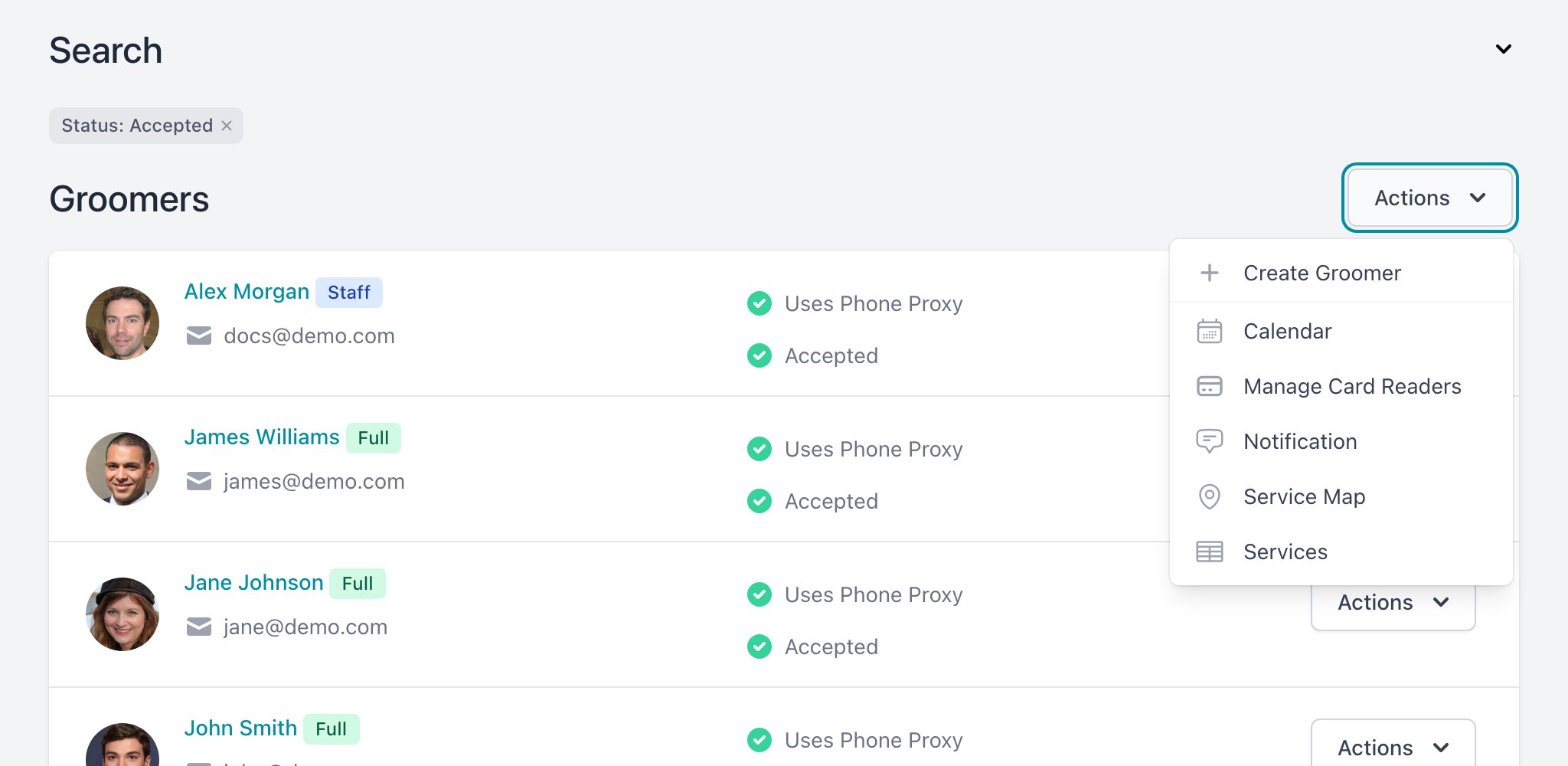
| Option | What it does |
|---|---|
| Create Groomer | Adds a groomer. See Create a Groomer. |
| Calendar | All groomers' bookings and busy times. See below. |
| Manage Card Readers | See Card Readers. |
| Notification | Sends messages to the app. See Notifications. |
| Service Map | Shows where your groomers work. See below. |
| Services | Who offers which service. See Services. |
Calendar
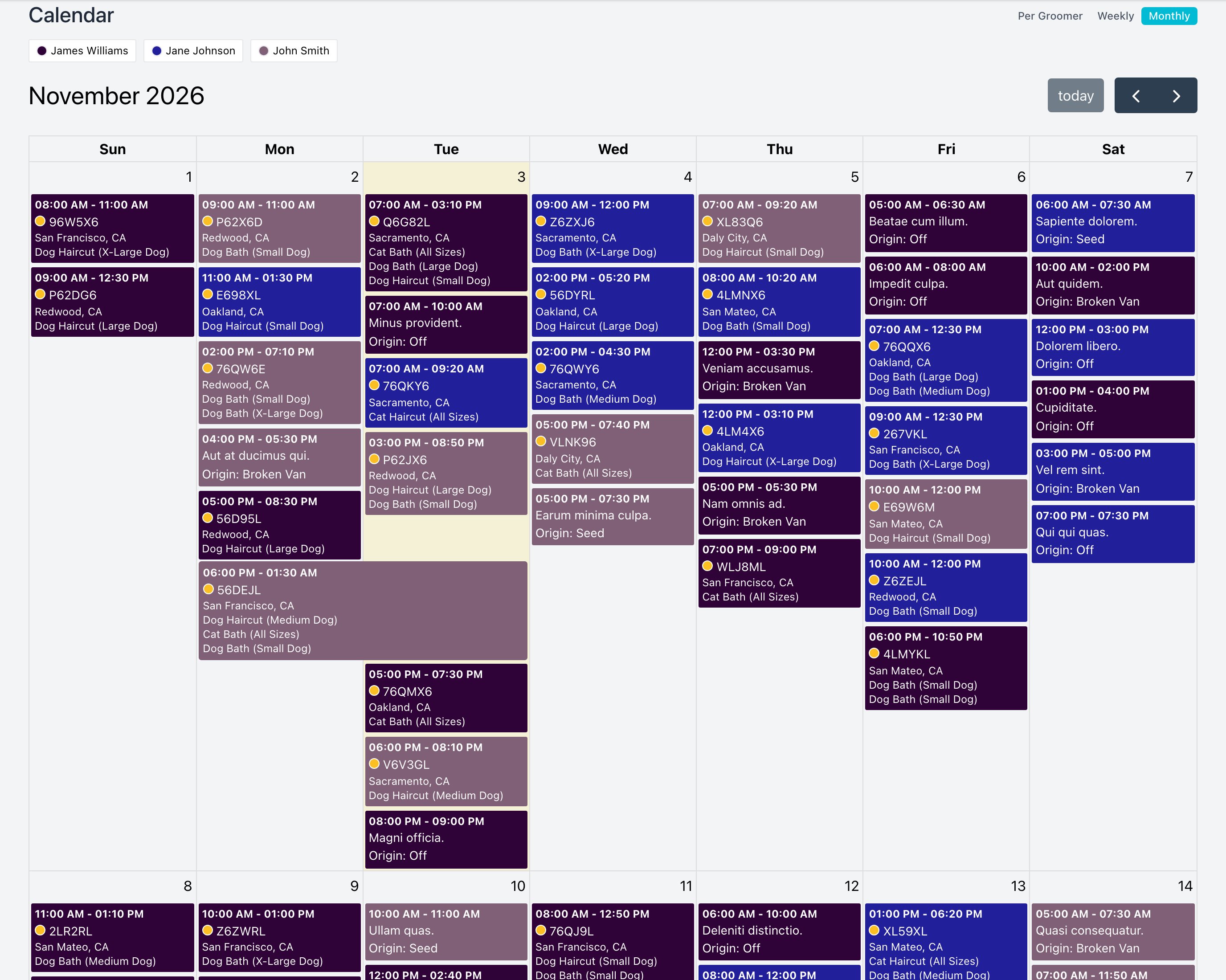
- Switch between Per Groomer, Weekly and Monthly views.
- Each groomer has a color. Show or hide groomers with the toggles.
- Click an event to open the booking or busy time.
To view this component the user must have permission to
Service Map
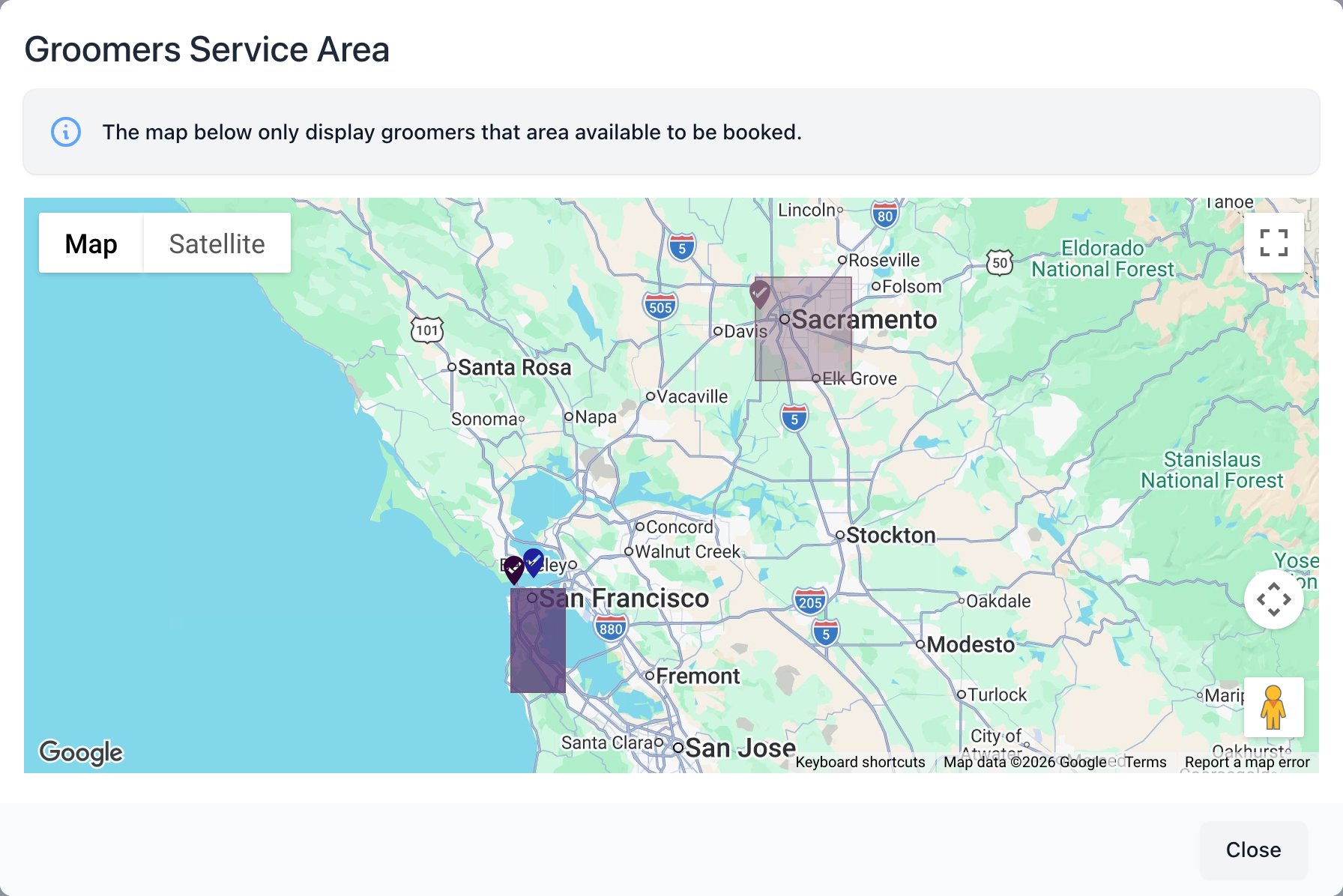
Shows the areas where available groomers work on their working days.
Use it to find gaps in your coverage.
Groomer Page
Click a groomer in the list.
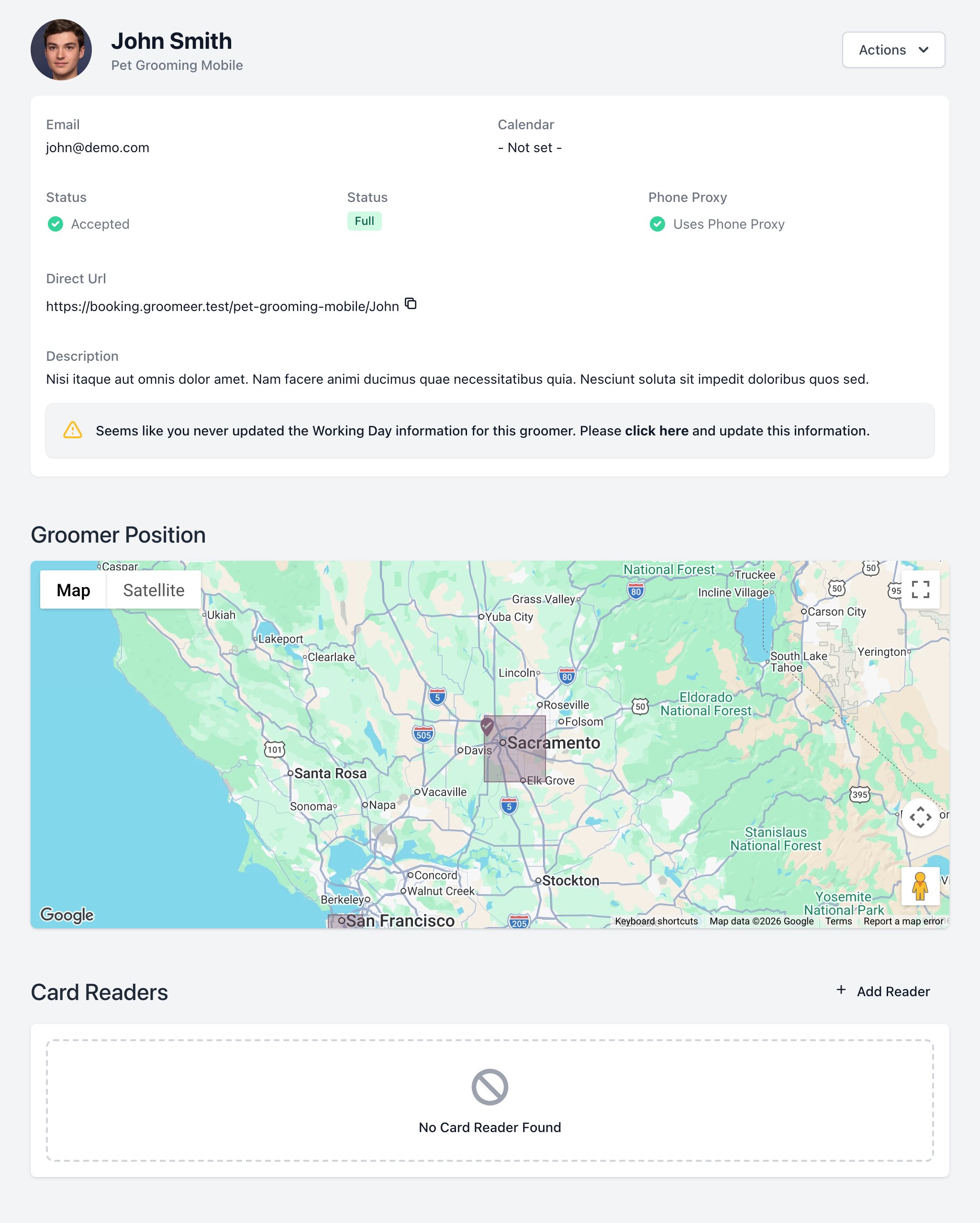
- Info: email, calendar sync, status, type, phone proxy, direct booking link and description.
- Alerts: warnings like no services, no active area or working day never updated. Fix them so the groomer can receive bookings.
- Groomer Position: the last known location and the areas in use.
- Card Readers: the groomer's readers. See Card Readers.
Groomer Actions
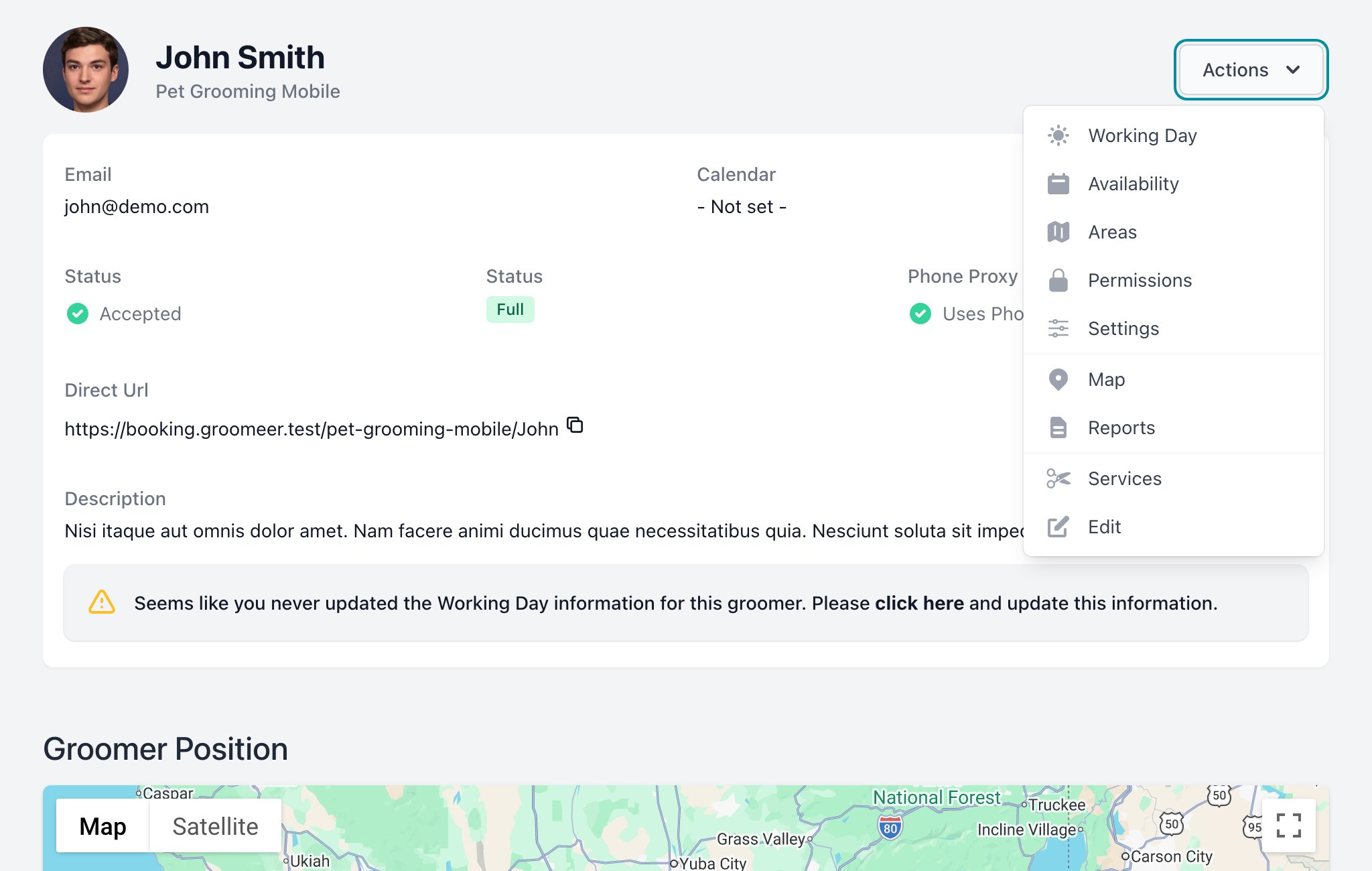
| Option | Page |
|---|---|
| Working Day | Working Day |
| Availability | Availability |
| Areas | Areas |
| Permissions | Permissions |
| Settings | Settings |
| Map | Daily Map |
| Reports | Reports |
| Services | Services |
| Edit | Edit Groomer |